
We've broken down all the main components that make up a computer, so you’ll know exactly what to ask for, what you can expect to pay, how different aspects affect performance, and what the vendor is talking about if you ask for their opinion. Click on each item for detailed information.
Monitor (screen)
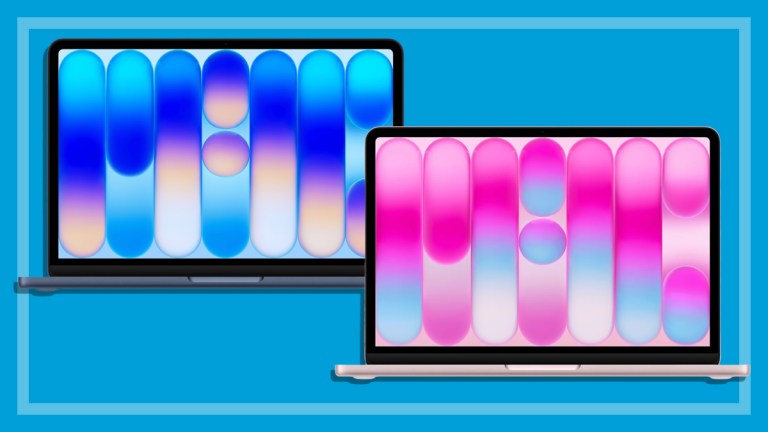
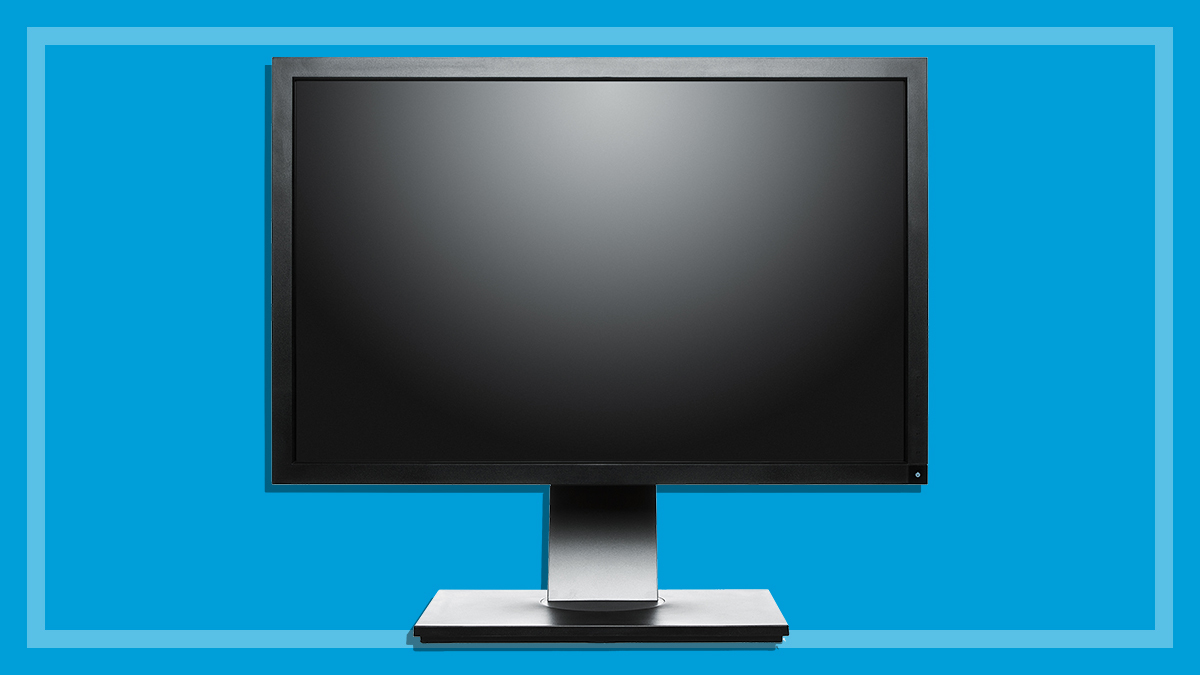
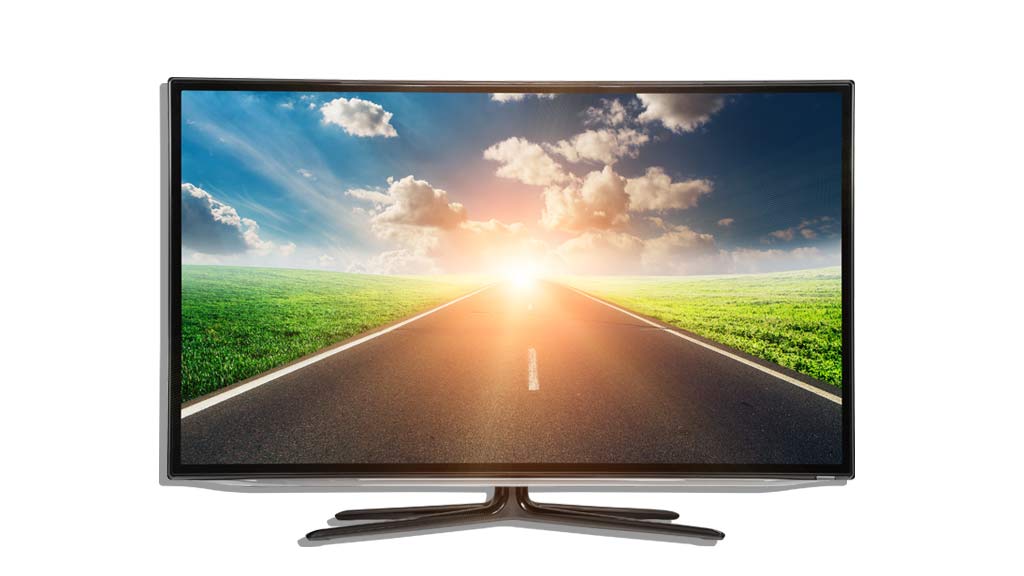
With plenty of good-quality, low-cost models available, there’s no need to skimp on size. A widescreen is standard these days, and ideal for watching DVDs and Blu-rays, playing games, and working with multiple documents and applications at once. The cathode ray tube (CRT) monitor technology is outdated, and may not work with a modern desktop PC
.
A 17- to 24-inch monitor typically costs between $150 and $400, while 25-inch-plus monitors start from $250-$300 and can cost more than $1000 for top-end technology with In-Plane Switching (IPS).
Whatever you buy, don’t assume a screen is high-resolution just because it’s large. Resolution is the number of pixels the monitor can display and helps determine image quality. Generally aim for monitors that support a resolution of at least 1600 x 1200, or even 1920 x 1200 pixels or greater.
Monitors also offer different refresh rates (measured in hertz - Hz), which determine how many times the screen will refresh in one second. A high-refresh rate reduces instances of screen flicker, resulting in a smoother picture. This is especially important for fast-paced action in games and movies, but contributes to the overall viewing experience. Rates of 120Hz and 144Hz are considered top of the line, and produce excellent image quality, but a 60Hz screen also produces good results. You will need the appropriate graphics cards and video inputs to fully utilise this technology.
Some companies also make 3D monitors which, like 3D TV, require specific brand of glasses. A 3D monitor needs a compatible high-power graphics card, as each image needs to be processed twice to create the effect. For a high-definition, 3D monitor with a high refresh rate, expect to pay $500-$1000, or more if it doesn't include the required glasses.
Regardless of which model you are considering, we recommend upgrading to a flat screen (LCD/TFT) monitor. If you wish to continue using your old CRT, you may need to get a DVI to VGA adaptor if your monitor doesn't have a DVI (digital) input. Some current, high-end models also require specific inputs to utilise certain features such as high refresh rates. Before buying, ensure your computer has the necessary inputs to utilise all the advertised features.
Hard drive
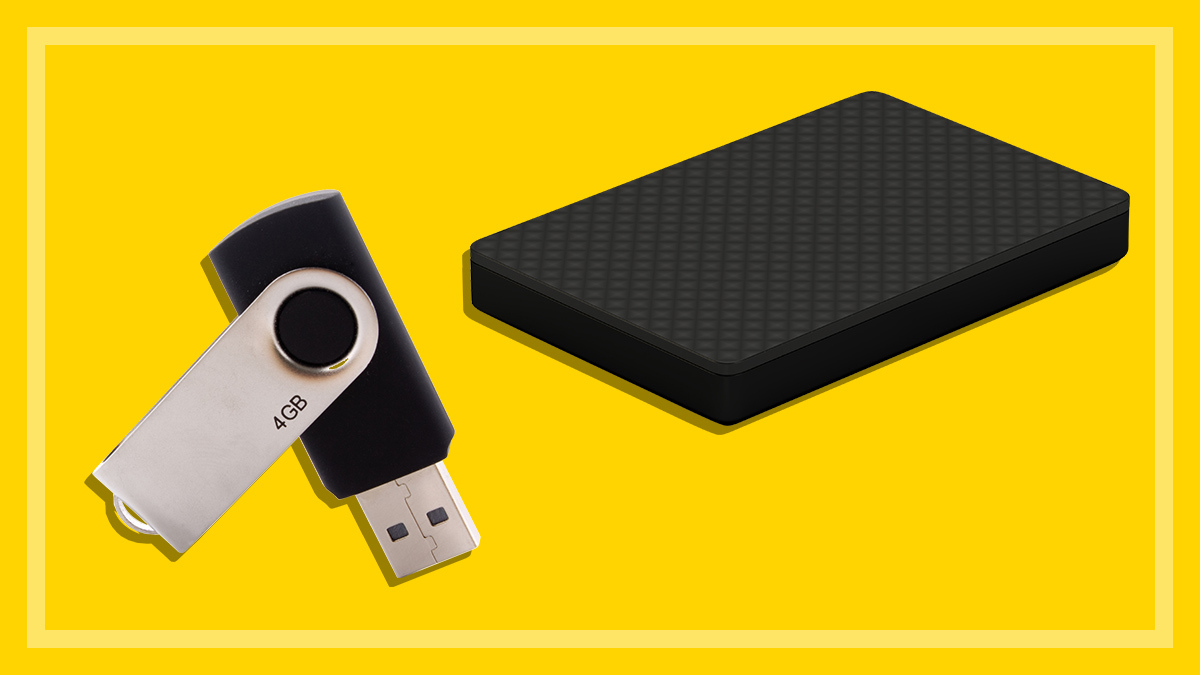
Hard disk drives (HDDs) are the most common, but solid state drives (SSDs) are becoming more popular. While 2.5-inch HDDs are common in laptops, 3.5-inch drives are the preferred choice for desktops, as they are faster and offer more capacity. You should aim for a hard drive with at least 1TB of space. A large desktop case offers you the space to install multiple storage devices, which is handy if you plan to store photos, videos and music. Having two drives can also be beneficial in the event of hard drive failure, especially if using RAID 0 (mirroring) which writes the same information to both drives simultaneously, to provide a constant backup (also called redundancy). This increases the cost of the build.
SSDs use memory chips to store data. They are more expensive than traditional spinning disk hard drives (up to $1 per GB), but SSDs are very fast and stable. They benefit machines that are used for disc-intensive work such as video editing. However, their capacity is nowhere near as great as the larger HDDs.
SSDs range in capacity from 64GB to 512GB at a consumer level. The 1TB models are recently entering the market, and although they are coming down in price, they are still very expensive, with some reaching the $2500. As with HDDs, the general rule for SSDs is the faster the better. SSD speeds are based on sequential read/write sequences, which are measured in megabytes per second (MB/s or MBps). You may want to consider a low-capacity, low-cost SSD, which holds 60-120GB, as the drive for your operating system (called a boot drive) and a large traditional hard drive for your data. That way, your operating system will run faster and with improved stability.
If you don’t have room for two drives, or you can’t afford a large SSD, think about installing a hybrid drive. This combines a small SSD partition designed to host the operating system, and a large hard drive space for file storage. This technology is still emerging and primarily aimed at laptops, but you can also install a hybrid drive in a desktop tower. For example, the Seagate SSHD range combines an 8GB SSD with either a 1TB or 2TB hard drive.
CPU
The central processing unit is the brain of the system. But you can’t rely only on the CPU's speed rating, usually noted in gigahertz (GHz), unless it is the same processor family (such as Core i3 or Core i5). Today’s processors also factor in other technology, such as dual- or quad-cores (that is, two or four processors on the one chip).
Most home PCs use an Intel-branded processor or one from AMD (Advanced Micro Devices). Intel processors include, in descending performance order, the new Extreme i7 Core series, the Core i7, i5 and i3 processors, and finally the Pentium and Celeron. Similarly, AMD starts at the FX, followed by the A-Series, Phenom II, Athlon II and Sempron. Each brand offers different generations of processors, and while the latest are generally better, older versions may suit your needs and can save you money. Intel's interactive processor selector helps you decide which processor is suitable for your needs. AMD has a similar service.
When it comes to processor cores, a higher number cores increases the number of processes the computer can run at any given time, without impacting performance, and improves processor efficiency when it’s working on a single task. The most common models are dual-core and quad-core, and six- and eight-core models are available for a premium.
So what type of processor should you look for? Entry-level dual-core PCs handle the processing demands of basic computing tasks including internet usage, while digital photo and movie editing requires a processor with a bit more kick using Intel processors for example. For fast general computing, you’ll want to consider a quad core i5, while i7 is a better option for 3D rendering or high-resolution gaming.
As a rule of thumb, always aim for the best processor level, with the highest number of cores, that suits your budget. The same rule applies for speed, as it has the most impact on performance after RAM, and a higher speed ensures your machine keeps up with the Jonses a little longer. Remember to consider the speed and model in conjunction. For example, a 1.7 GHz i7 will perform faster and more efficiently than a 2.1 GHz i5. Upgrading your processor is a very difficult process that usually requires professional help, so this is one part of your PC that should be considered permanent.
RAM
This is the computer’s memory. A lack of RAM causes your computer to run slowly when performing multiple or labour-intensive tasks such as image processing. Look for a minimum of 4GB (gigabytes) even in a budget system, but ideally aim for 8GB. The brand of memory you buy doesn’t really matter as they all perform about the same with the exception of RAM designed for high-end systems. So how much do you need?
First, consider which operating system you’ll be running. It's different for 32-bit and 64-bit systems. For example, the 32-bit version of Windows 8 only requires 1GB of RAM, but the 64-bit version needs double that amount. Also, the 32-bit version of Windows can only make use of up to 4GB of RAM, whereas the 64-bit version can utilise up to 128GB in the Standard Edition and 512GB in the Pro Edition. If you intend to run multiple programs at once (eg web browser, Microsoft Office and a music player), edit photo/video, or play video games with detailed graphics, it will all run more smoothly with 8GB of RAM. For even more intensive work such as 3D rendering you’ll want more than 8GB of RAM for best performance. If you think you don’t have enough, upgrading RAM is relatively inexpensive and easy with a bit of technical know-how.
Bear in mind that software can only use as much RAM as it is programmed to, and adding additional RAM will not help it run faster once the software has reached its peak. However, extra RAM means you can run more programs at the same time.
Graphics card
A dedicated card graphics card is mainly used for gaming, video acceleration, and photo and video editing, but Windows, Mac OS X and Linux will also take advantage of your graphics card to make your operating system look prettier via transparency and animation effects. The diverse range of cards on offer means doing your homework is essential. Prices range from about $100 to more than $1000, depending on the amount of memory built into the card, and the number and speed of its processors.
The main producers of Graphics Processing Units (GPUs) are Nvidia and AMD (formally ATI), and many manufacturers purchase GPUs from these companies to build their own graphics cards, such as Asus and MSI.
A separate graphics card is often referred to as "dedicated graphics". You will also see the term “integrated graphics” (also called onboard graphics). This is a graphics chipset built into the motherboard, rather than on a separate card. Integrated graphics has become much more powerful in recent years, but a separate graphics card will still generally provide much faster performance.
For basic computing and standard-definition video, integrated graphics are fine. If you’re going to play graphically intensive games, edit video and audio or watch HD movies, aim for 1-2GB, depending on the level of detail required. Highly detailed 3D rendering software and high-quality computer games benefit from at least 3GB of graphics RAM. Top-end models peak at 6GB, but these are very expensive and only suited for serious gaming computers. Remember, if you want to output to a 3D monitor, you’ll need to buy a graphics card that’s 3D compatible, or you may need to update your graphics drivers to make them 3D compatible.
Operating system (OS)
Windows 7 is the most common OS in use, but if you buy a new computer it usually comes with Windows 8. It's available in two consumer grade versions: a standard edition called Windows 8 and Windows 8 Pro. Most retailers offer PCs with the standard edition preinstalled, but you can purchase upgrade kits if required. PC manufacturers are often able to install either the Standard or Pro edition, so it’s important to research each version and determine if Pro is worth the extra cost. The standard edition suits the needs of most consumers.
If you’re building your own machine, you need to purchase an original equipment manufacturer (OEM) edition. An OEM is essentially a full (non-upgrade) version of Windows 8 that you can install on any empty hard drive, or as a virtual drive alongside the main operating system. The OEM is only available through PC component suppliers, and is available in Basic and Pro editions.
Some suppliers can install an older operating system, which can save you money without compromising system integrity and security. Our example systems recommend Windows 7, as it’s currently more affordable than 8, and still receives full support from Microsoft. We don’t recommend going further back than Windows 7. Linux is also an option from some PC suppliers, but is only for advanced users. Linux is noted for its stability and security and will run on most hardware (where drivers are available). There are a huge number of Linux versions (called distributions) available, with arguably the most popular being the free Ubuntu.
See our section on Mac and Linux.
Optical drive
Optical drives are still standard equipment in towers. They are usually CD/DVD burners, but Blu-ray drives are becoming more common. A Blu-ray combo drive reads Blu-ray discs and can also burn CDs and DVDs. Compared to backing up to an external hard drive burning data to a CD/DVD is impracticaldue to their limited capacity, but having the equipment on hand still provides you with an additional means of viewing, storing and transferring media.
A single-layer DVD disc holds up to 4.7GB of data, while a dual-layer (or double-layer) disc holds up to 8.5GB. Blu-ray burners are less common and more expensive, both for the drive and the blank discs. Blu-ray discs can hold 25GB or 50GB of data.
Cooling system
Poor ventilation can cause computer components to overheat, shortening their life expectancy. High-end PC components, in particular, can run hot, especially during labour-intensive processes, so it’s important to have a dedicated cooling system installed. For low- to mid-range PCs, the inbuilt fans of a good-quality case are suitable, but a CPU cooling fan is also an inexpensive and worthwhile addition.
If you’re going to fill your tower with high-end gear and push it to the limit, you’ll need to consider multiple fans, or a water cooling system. The idea of running water inside a PC might sound like a disaster waiting to happen, but these self-contained units are much more effective at keeping components cool. The trade-off is that they’re very bulky, so you’ll have to invest in a larger case.
Keyboard and mouse
You can find a good quality keyboard and mouse kit for as little as $19, or as much as $199. Some manufacturers have returned to producing "mechanical keyboards". These use individual metal switches for each key and are generally considered more accurate and durable, thus they cost considerably more than a standard plastic-switch keyboard.
Kits suited for computer games include additional buttons on the keyboard and mouse called hot keys. These are generally used as programmable shortcuts for in game actions, for example, pressing a hot key to open a certain menu.
Wireless versus wired is a matter of personal preference, but a wireless keyboard and mouse gives you the advantage of being able to operate your computer from across in the room.
Sound card
Dedicated sound cards are reserved for serious audio enthusiasts. While sound cards aren’t expensive, unless you plan to do audio editing or expect the very best from your games, the on-board sound components built into most motherboards are already high-fidelity. If you are considering buying a sound card, you will need to invest in a high quality set of speakers/headphones to make the most of it. Higher-end cards support surround sound speaker systems up to 7.1 (seven speakers plus subwoofer).