It’s always so tempting to curse the National Broadband Network (NBN) or your internet service provider (ISP) when the internet is on the fritz. But while outages do occur, the cause of your networking issues may be much closer to home.
Think about how many devices connect to the internet at home. Your phone, TV and laptop, not to mention smart appliances including lightbulbs, security cameras and maybe even a washing machine. There are a lot of links in the networking chain that can cause problems which don’t involve the NBN or your ISP whatsoever.
Our home networking expert Elias Plastiras has some quick tips that can help troubleshoot issues and improve Wi-Fi speeds at home. Give these a try before getting in touch with your ISP.
A typical home uses a modem and router to connect to the internet.
Modem: bridges the connection between the outside internet line and your home via a wall socket, not unlike a landline phone.
Router: broadcasts and distributes the internet throughout your home via wired (ethernet) or wireless (Wi-Fi) signals.
You can also use all-in-one units called modem-routers.
These days, many NBN connections use a Network Termination Device (NTD – sometimes called an NBN connection box or NBN connection device), which replaces the modem. This is supplied by NBN Co. for free and though the appearance can vary depending on your connection type, functionality is the same.
A standalone router is still needed if your home uses an NTD.
Text-only accessible version
Connecting to the NBN.
FTTN (fibre to the node) and FTTB (fibre to the building) connections: You can connect to the NBN using a modem-router or a separate modem and router. You can not use a network termination device (NTD).
FTTC (fibre to the curb), FTTP (fibre to the premises) and HFC (hybrid fibre–coaxial)connections: You connect to the NBN using a supplied network termination device (NTD) and a router of your choosing.
Information based on a typical fixed-line connection. Fixed wireless also uses an NTD while satellite internet uses a unique modem supplied by NBN Co.
How to check internet issues at home
Outages aren’t always the problem, but they do happen. Ask yourself these questions and run through the troubleshooting steps before you dive into your home network.
Is it a peak period?
Because there’s only so much internet to go around, speeds fluctuate based on network traffic in your area. They decrease as more homes come online and increase when people log off.
Peak periods are windows when the largest number of users are online at home. These are typically a few hours before and after a standard work day (9am to 5pm).
During these times, your network will fall a bit below the advertised download speeds. ISPs call these “typical evening speeds” and they’re not indicative of an internet issue, they’re simply the natural result of increased demand.
For example, you may have an NBN plan that promises 100 megabit per second (Mbps) download speeds, with typical evening speeds around 85Mbps. So, there’s nothing to worry about when your internet is a bit slower from around 6–9pm, annoying as it may be.
Is there an outage?
A full internet blackout may be the result of an outage in your area. You can check the network status by entering your address at your ISP’s website or the NBN network status and outages page.
Most households have at least one mobile device capable of connecting to a 4G or 5G network, which you can use to check your network status. Alternatively, ask a neighbour or contact a family member who may be able to look for you.
The NBN checker won’t work if you’re using another internet service, such as Starlink.
There’s always a chance that your internet connection isn’t to blame. Websites and online services can run into problems as well and when they do, things can slow down or stop working entirely at your end.
“A speed test can help identify whether it’s an issue with your network or theirs,” Elias explains. “It’s a simple way to check your download and upload speeds at home and whether they’re performing as advertised.”
To run a Wi-Fi speed test on a laptop or smartphone:
Disconnect all other active devices from the network. Make sure no one is secretly streaming in another room.
Move your phone or laptop as close as possible to your wireless router to ensure a clear line of sight.
Connect to the fastest band, which will be 5 or 6GHz (you can switch networks in the device’s network settings).
Go to speedtest.net in the device’s web browser and click ‘Go’ to run the test. When it’s finished, note the download and upload speeds and compare them to those advertised on your plan.
Repeat this test on a handful of smartphones, tablets and computers connected to your home network. Don’t worry about other smart devices such as your TV, lightbulbs and cameras.
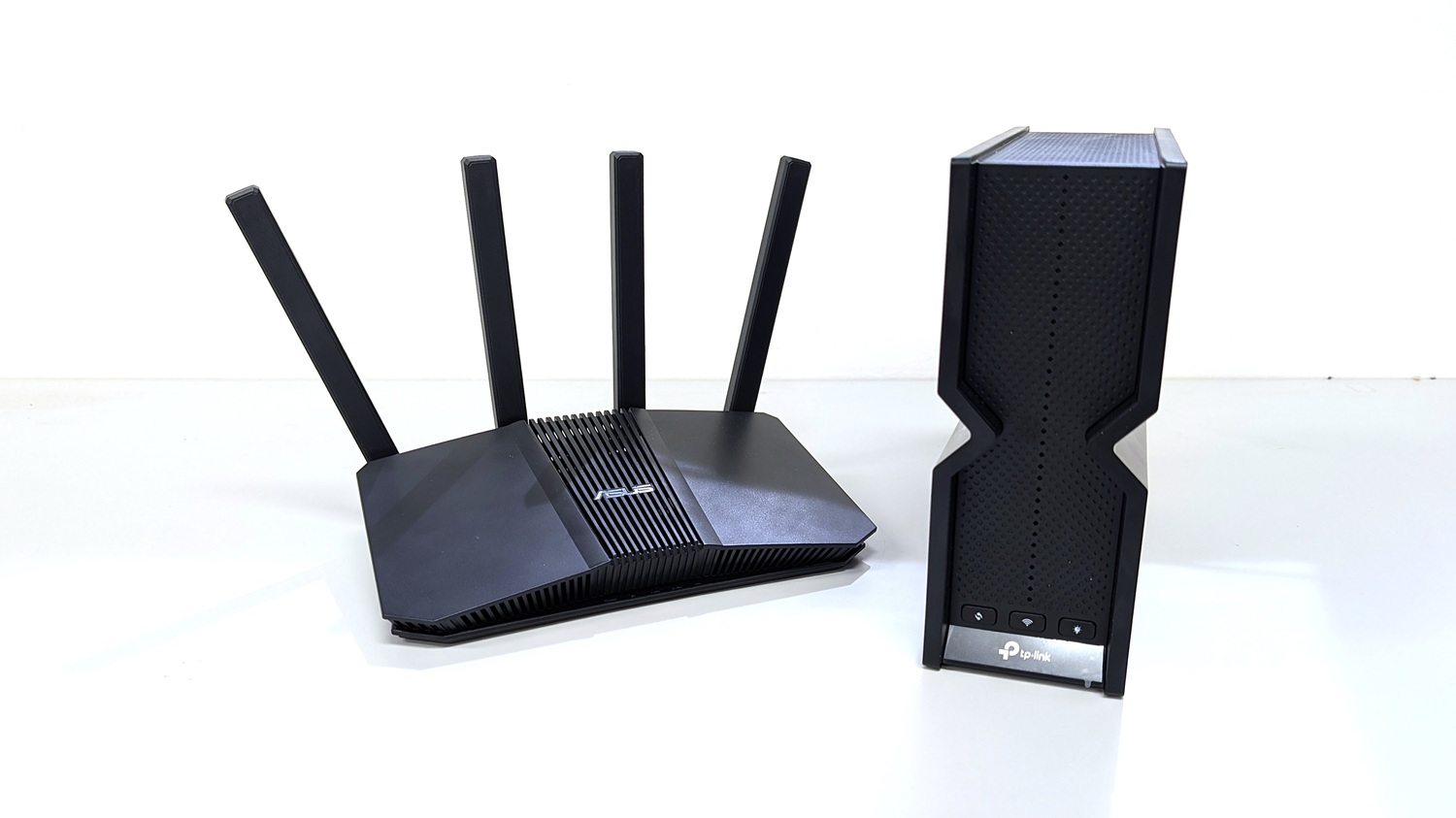
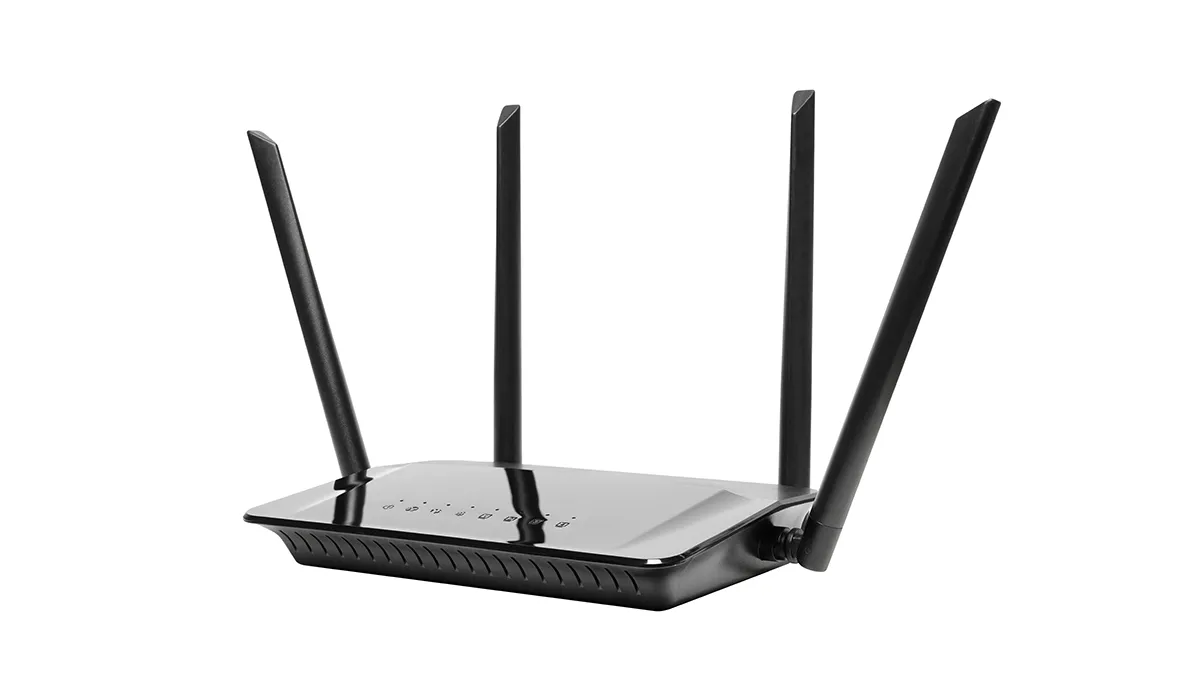
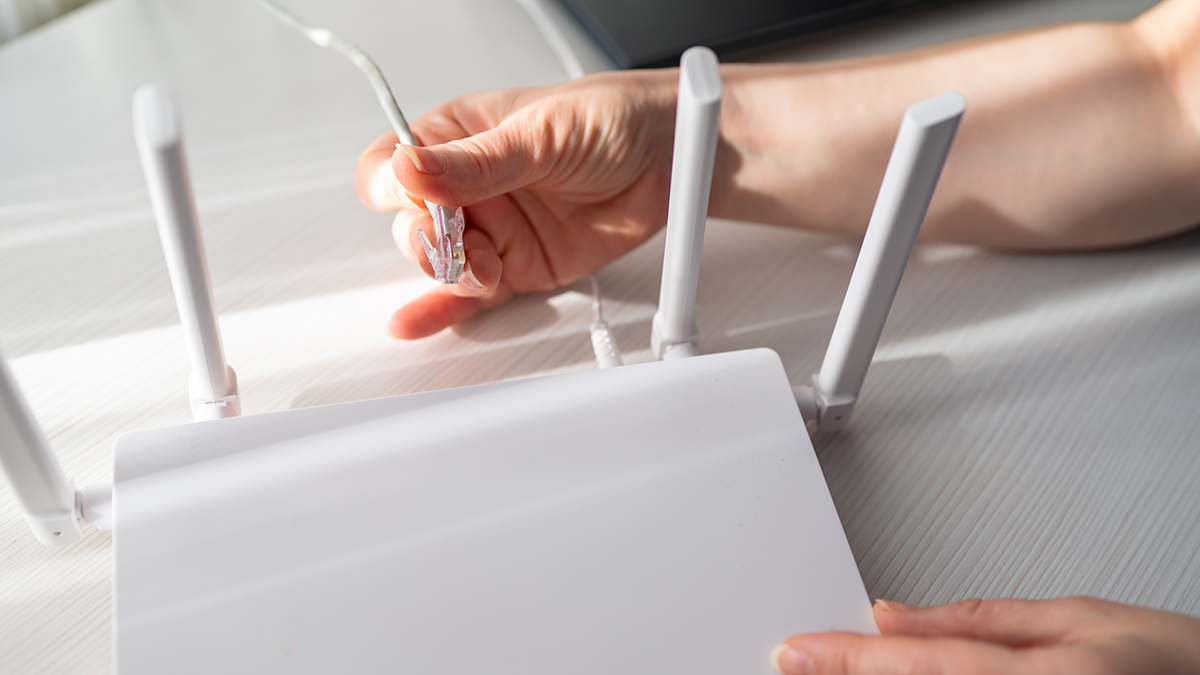
Some routers use external antennas, others keep them contained.
If the results are within about 10Mbps of your plan’s advertised speeds then the service provider is probably experiencing issues, not you. But if your speeds are falling well below that point, e.g. 60Mbps on a 100Mbps plan, and you’re outside a peak traffic window, then you may have a problem at home.
“There could be problems with the NBN or your ISP,” says Elias. “But it’s more than likely an issue with your equipment – probably an older router that lacks the hardware to deliver faster speeds.”
If you’ve ruled out other causes and the signs seem to be pointing to a potential problem at home, try Elias’s troubleshooting tips.
Turn it off and on again
“This is a classic tip for a reason, it really can work,” explains Elias. “Modems, NTDs and routers are usually turned on 24 hours a day, seven days a week and sometimes they just need a quick nap.”
Turn off your modem, router, modem-router and NTD (the exact devices will vary depending on your network setup) for five to ten minutes then turn them back on. This triggers a full power cycle which should clear out lingering issues that are slowing down the network.
Reposition your router
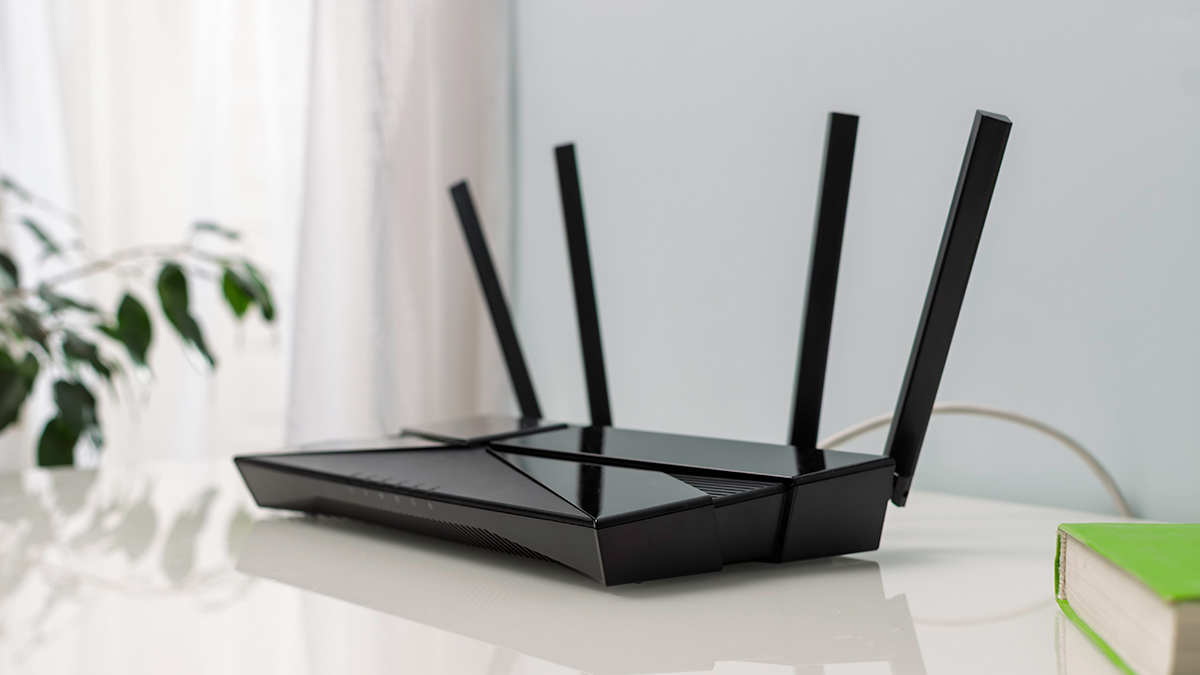
“Think of your router like a radio,” says Elias. “you probably wouldn’t shove it under a desk or in a cupboard because the broadcast would start to cut out and sound bad.”
“A wireless router needs to be in a nice open space with as clear a line of sight as possible to get the best coverage. Tucking it away in an inconspicuous spot can really reduce the broadcast range.”
Connect to a better band
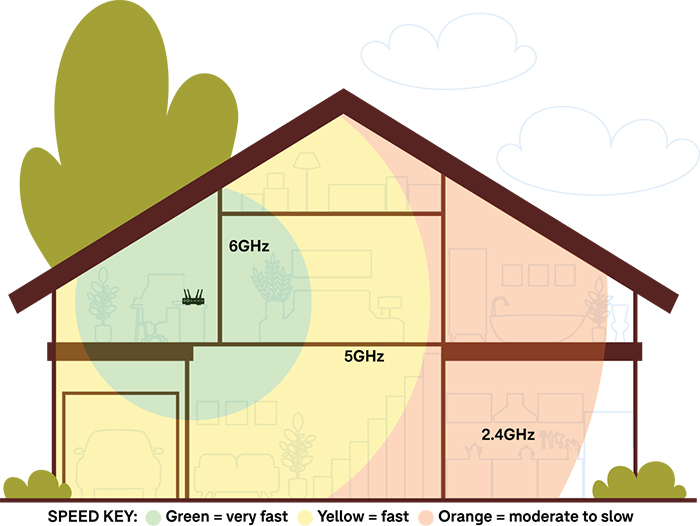
Wi-Fi is broadcast on up to three bands, which are measured in gigahertz (GHz). These are 2.4, 5 and 6GHz. Bands at the lower end of the spectrum have slower speeds/less bandwidth but greater range (meaning they can reach further distances), which inverts as bands move up the spectrum.
Wireless routers will usually assign the most appropriate band to each device on your network, to deliver the best performance. But you can rotate through them in the network settings of your devices which may improve performance.
Elias says that this can also relieve network congestion. “When lots of devices are connected to one band, there’s less data to go around which will slow things down. Spreading them across all available bands on your network can help clear things up.”
Update your equipment
Older wireless routers don’t have the firmware or hardware that you need for high-speed/high-bandwidth plans. This mostly comes down to the Wi-Fi version, which is basically the firmware that keeps your router running. It’s also a good way to gauge the age of your router.
Older wireless routers could be suitable for smaller households, but may not be able to handle multiple concurrent users. Larger households, and those with lots of smart appliances, should consider a router that can effectively distribute data to many devices at the same time.
It’s best to upgrade to a Wi-Fi 6, 6E or 7 router if you’re on a high-speed plan
Elias Plastiras, CHOICE home networking expert
“Families and share houses can really benefit from a high-speed plan with plenty of bandwidth to go around, and a wireless router to match” says Elias. “Look for routers that score well in the multi-client part of our performance test, because they don’t struggle with lots of network traffic.”
“It’s best to upgrade to a Wi-Fi 6, 6E or 7 router if you’re on a high-speed plan” he adds. “Not only are they suitable for the fastest NBN plans available to consumers, they are also more likely to have the hardware to match your high-speed networking needs.”
“For example,a Wi-Fi 7 router will more than likely have connection ports capable of transferring the substantial amount of data required for gigabit internet.”
“You can probably get away with using a Wi-Fi 5 router if you’re on a slower plan and don’t need a lot of bandwidth,” he adds. “But older equipment like this introduces security risks as manufacturers stop rolling out security patches after a while, which can leave your network vulnerable.”
Text-only accessible version
Text-only accessible version
Typicalmaximum Wi-Fi speeds for recent Wi-Fi versions
Wi-Fi 7 (802.11be): up to 2000 megabits per second.
Wi-Fi 6 (802.11ax): up to 1000 megabits per second.
Wi-Fi 5 (802.11ac): up to 500 megabits per second.
Wi-Fi 4 has a typical peak speed of up to 100 Mbps. Speed tiers refer to maximum typical speeds across three NBN plans sold by ISPs. Figures in brackets refer to the technical Wi-Fi version name as per the Institute of Electrical and Electronics Engineers (IEEE) standard. This may appear in your router information in place of the general name.
Double check your devices
Wi-Fi versions are a two-way street. Your phone, laptop, TV and other devices need to be running a Wi-Fi version that matches (or exceeds) your router’s speeds for the best performance.
“Like your router, the Wi-Fi version in your device plays a key role in determining its peak download speeds,” he says. “You’re not going to get superfast download speeds on a laptop that was built before ISPs made these plans available to consumers. A model from the Wi-Fi 3 era probably wasn’t built with gigabit plans in mind.”
Check the product specifications to find out the Wi-Fi version. Anything running Wi-Fi 4 or older can’t tap into the high-speed plans and should be upgraded to a device with Wi-Fi 6 or better.
Maybe your internet plan is just slow? Or maybe you have more devices and concurrent users than your current plan can handle? In either case, a speed/bandwidth upgrade may just be the ticket, according to Elias.
“Your bandwidth needs are probably greater than you realise, especially if more than two people are streaming video or playing games online at the same time, for example,” he says.
If things feel slow, video streaming quality keeps dipping or devices keep dropping out, consider upgrading to the next fastest plan. This costs a bit more but it’ll save you some major headaches.”
Just make sure you have an NBN connection that supports the increased speeds. You may need to apply for a fibre upgrade if your home still uses the old copper network.
“Internet speeds and bandwidth decrease as you move further away from your router,” explains Elias. “You need to be on the 5 or 6GHz band and positioned as close as possible to get the best speeds.”
So what happens if you’re trying to get online on the other side of the house or upstairs, through thick walls and floors? That’s where Wi-Fi repeaters and mesh networks come into play.
Repeaters are relay points that boost a weak signal in the immediate vicinity. They’re handy for improving a Wi-Fi connection in a single room but may not be practical to cover a whole house.
Mesh networks use a series of nodes to build a Wi-Fi dome of sorts around the home. They can be an easy solution for improving performance in every corner of the property. But they’re a bit harder to set up and usually cost more than one or two repeaters.
Your last port of call is to adjust your router’s settings. There are plenty of features that can automatically improve speed and stability and some more advanced options open to people who aren’t afraid to dig a little deeper into the tech.
Quality of service: Automatically allocates bandwidth based on the device and its needs at the time. A TV streaming video in 4K will get more bandwidth than a phone watching the same content in high-definition, for example. This is a very common feature.
Bandwidth throttling/management: Allows you to manually set a bandwidth limit for each device on the network. Not quite as common as quality of service and may be a bit tricky for novices.
Band steering: The router will automatically identify and allocate the optimal band for the connected device based on bandwidth requirements and network congestion. Similar to quality of service but the router shifts bands rather than adjusting bandwidth specifically.
MU-MIMO: Stand for “multi-user multiple-input multiple-output”. This function automatically allocates individual data streams (bandwidth) to multiple active devices in parallel, rather than connecting each to a single Wi-Fi broadcast on each band. This helps improve performance and stability and relieves congestion as devices aren’t “competing” for bandwidth on a single band.
Multi-link operation (MLO): Allows supported MLO devices to use all available bands on the network at the same time to improve stability. Requires Wi-Fi 7.
Channel width adjustment: Measured in megahertz (MHz), this is a granular approach to avoiding network congestion. Manually adjusting the frequency range (channel width) within each band can help improve stability and performance depending on the device. It’s an advanced setting that you’ll only find on some mid- to high-end routers.
Why we've partnered with WhistleOut

We've partnered with search engine WhistleOut to help you find and buy the right plan for you.  While we make money if you buy through WhistleOut, this doesn't influence our rankings. 100% of the money we make goes straight back into our nonprofit mission.
Peter Zaluzny is a Content producer in the Digital home team. He covers everything from home entertainment and personal safety devices to tech for your car and mattresses.
Peter enjoys cutting through the nonsense to help people understand the products they’re considering to buy. He helps consumers make educated, informed decisions.
Peter has a Bachelor's degree in Journalism and a Bachelor of Arts from the University of Wollongong.
Peter Zaluzny is a Content producer in the Digital home team. He covers everything from home entertainment and personal safety devices to tech for your car and mattresses.
Peter enjoys cutting through the nonsense to help people understand the products they’re considering to buy. He helps consumers make educated, informed decisions.
Peter has a Bachelor's degree in Journalism and a Bachelor of Arts from the University of Wollongong.
For more than 60 years, CHOICE has been fighting the good fight for Australian consumers.
In the past year alone we've uncovered systemic issues with sunscreens, investigated shonky supermarket pricing, fought for stronger scam protections and helped make complex energy pricing fairer and clearer.
CHOICE is here to provide unbiased advice and independent testing in our world-class labs. We buy the products we test, just like you do, and our expert reviews are influence free. We’re here to help you choose smarter. Hopefully you’ll also save some money along the way.
Thanks to CHOICE, you’ll never be alone when a business treats you unfairly. You can support our work by joining or donating to our cause.