Giving out app permissions without thinking can be dangerous
Some apps ask for permissions they shouldn't need
Apps can sell your information to advertisers or use it to steal from you
Apps can have more access to your
information and features on your device than is good for your security. Here’s
how to check and rein them in if necessary.
Sometimes apps need access so they can function properly.
At other times, you could be giving permission for a handful of features
you don’t even use, or that the app shouldn’t need. This can be a risk to the security of your device and your
personal information.
Be particularly wary of an app asking for access to features that it doesn’t
seem to need. At best, this could potentially allow advertisers to gain
information about you. At worst, malicious apps could
let cyber criminals steal your information and control device features such
as the camera and microphone.
Some permissions can be more dangerous to give out than
others:
Camera
If an app can take pictures or video, it needs
permission to access the camera. But this might also mean that a malicious app can
turn your camera on and off in the background and take pictures or video
whenever it wants.
Photo storage
Apps that take photos need to save them
somewhere. Others, such as image editors, need to import pics from your albums.
But this might also mean a malicious app could access photos to sell as
profiling information or worse.
Microphone
Text-to-speech, voice calling, voice
recorders and any app that has voice input needs your device’s microphone.
However, app makers could use your microphone to record conversations as well
as what music, movies or TV shows you enjoy and sell that data to advertisers or use it to steal personal information for identity theft, fraud or to trick you into giving up account passwords.
Location data
Location tracking is one of the more common
permissions apps request. Apps for navigation and maps obviously need your
location. Many others, particularly social media, let you tag your location, either for organisation (think sorting photos from a holiday) or social media bragging, among other things.
But there are plenty of apps that don’t need it at all. Tracking your exact
location is valuable data for marketers. If advertisers know what stores you go
to and where you live, they can build a detailed personal profile about you.
Contacts
Once an app has access to your contact list,
it can upload phone numbers, email accounts and other information to an
advertising or phishing scam list. If you don’t think an app needs access to your
contacts, leave this permission turned off and help protect your family and
friends.
File storage
Banking details, tax information, passwords
and other private information might be stored in a file or folder on your
device. If an app has a clear reason to save files to, or get them from your
storage, fine. If it doesn’t, ask yourself why it would need access.
How you control access
to your information and features depends on the device you’re using.
Windows 10
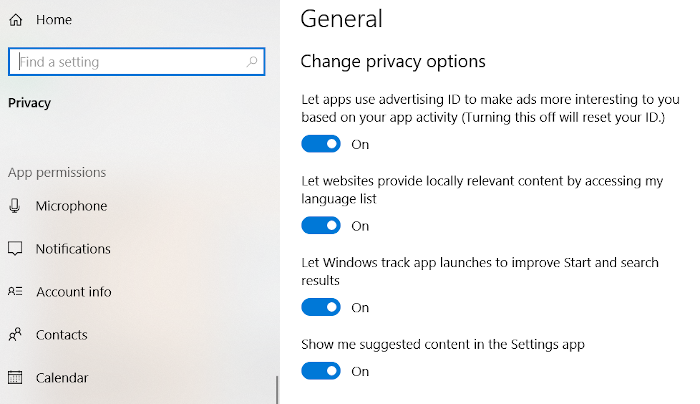
In the Start menu, go to Settings, then Privacy.
On the left, scroll down until you see App permissions.
In each category, you can switch app permissions on and off individually, or disable that type of permission for all apps.
You can also adjust what permissions you give to Windows 10 itself at the top of the same menu, under Windows permissions.
Android
Apps might ask for permissions before installation, when you
open it, or the first time you use a certain feature.
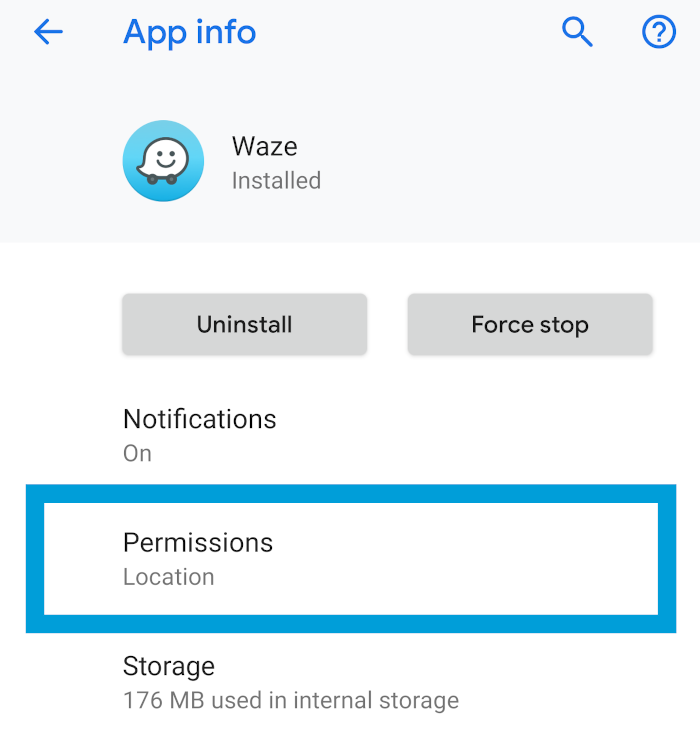
Android devices can have different menus, but in general, go to Settings then Apps & notifications, Application Manager or something similar. Select an app from the list then tap Permissions.
The Android app called Bouncer is also a valuable tool, which can be programmed per app to automatically remove a permission a set amount of time after you’ve used it. For example, you can open an app that needs location permissions and hit “Schedule” when prompted. Bouncer will remove that permission at the time you’ve scheduled. This can also be set to happen automatically, saving you the hassle of managing permissions every time you open an app.
iOS (iPhone, iPad)
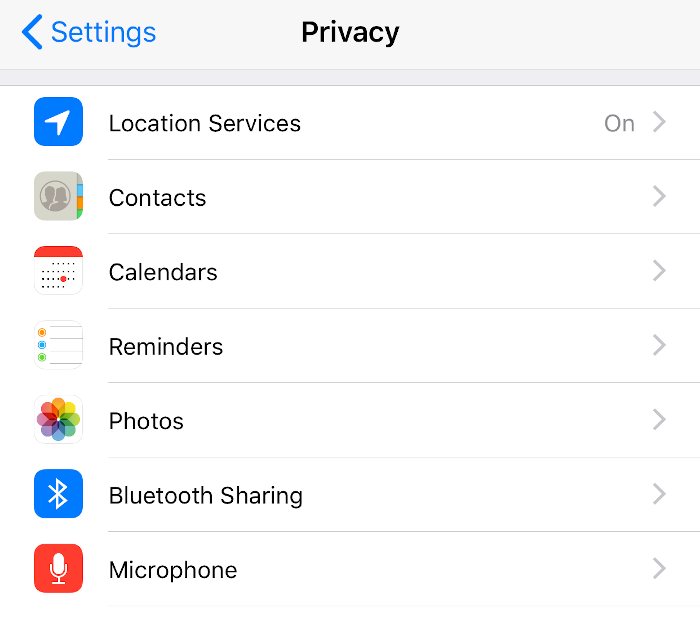
In Settings, go
to Privacy and tap each of the items listed to see more information and
turn permissions on or off.
Some let you control when or what parts of
information are available.
Also from Settings, scroll down to individual
apps and tap each one to see and control various settings, including
permissions.
macOS
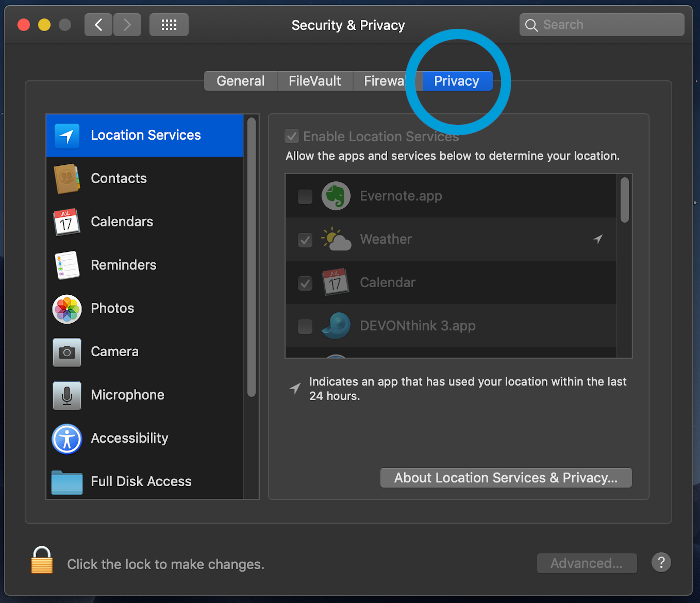
Go to the Apple menu, then choose System
Preferences.
In the panel that opens, select Security & Privacy,
then open the Privacy tab.
Click an item on the left to see its
permissions.
Err on the side of caution
If in doubt, remove/turn off a permission. Most apps will prompt
you to re-enable anything when it’s next needed.
If an app insists on getting permission for something and
you don’t understand why, check online to see if others are asking the same
question. You might find a good reason, or discover the app is dodgy and should
be uninstalled.
For more than 60 years, CHOICE has been fighting the good fight for Australian consumers.
In the past year alone we've uncovered systemic issues with sunscreens, investigated shonky supermarket pricing, fought for stronger scam protections and helped make complex energy pricing fairer and clearer.
CHOICE is here to provide unbiased advice and independent testing in our world-class labs. We buy the products we test, just like you do, and our expert reviews are influence free. We’re here to help you choose smarter. Hopefully you’ll also save some money along the way.
Thanks to CHOICE, you’ll never be alone when a business treats you unfairly. You can support our work by joining or donating to our cause.