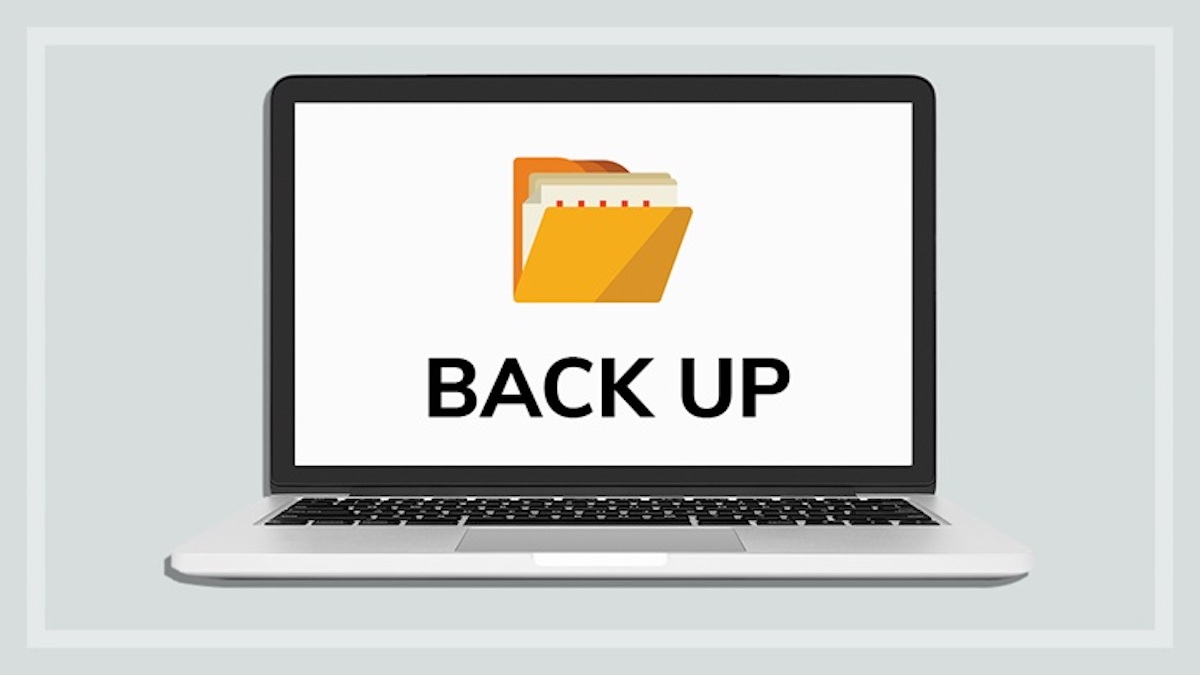

The more we rely on digital information, the more important it is to have reliable backup storage at all times.
We test 14 of the most popular commercial and free programs to see which make this onerous task easiest and give you peace of mind. These three key points are worth considering:
CHOICE's experts independently test a wide range of products and services to bring you unbiased reviews, product comparison tools and buying advice that is trusted by 140,000+ members.
Get access to all
CHOICE benefits.
$1.91
/week
*Billed quarterly
Purchase this
single report.
$5
What about Windows backup?
If you’re using Windows 7 you have access to backup software that comes with the operating system, but does Windows 7 Backup do a good enough job, or would you be better off with a third-party package? Or, can you get by with just copying your most important files to another drive using Windows Explorer? It depends what you are looking for. If you have a limited number of important files and keep them in a single folder, for example, and remember to regularly copy them to an external drive, you may find that is sufficient for your needs. But, you would be in the minority.
A cloud-based service such as Carbonite or Mozy is great for giving you offsite (remote) backup and can be configured to set-and-forget, but they are relatively restricted in their capacity due to internet transfer speed and ongoing subscription costs for sizeable backups.
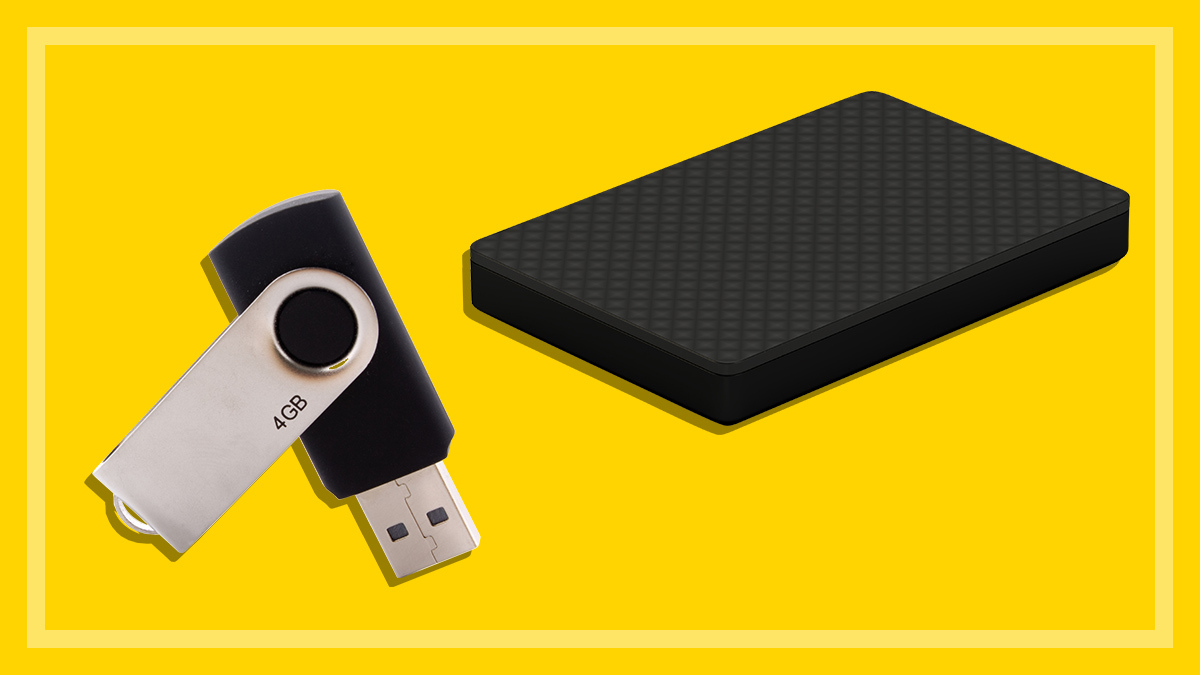
Backing up locally to an external hard drive or network attached storage (NAS) offers you far greater speed and capacity, automatic scheduled backups and no ongoing costs. Even if you use a cloud-based service for only your most important documents (some services are free up to 2GB or more of storage) you can’t beat the reassurance of having a readily accessible second copy at hand and the storage capacity to hold all your files easily, just in case. Digital photos and videos are the “photo shoebox” of the digital era and are irreplaceable. They also typically take up many gigabytes of storage. So you need a regular, automated backup for your peace of mind.
Software tested
-
ASyncback Freeware
- Ace Backup
- Acronis True Image Home 2011
- Argentum Backup
- Bullguard Backup 10
- Cobian Backup
- Comodo Backup
- JaBack 9
- GFI Backup 2009 Home Edition
- Microsoft Windows 7 backup
- Nero Back It Up & Burn
- FBackup 4.5
- Norton Ghost 15
- Paragon Software Backup & Recovery 10 Home
How we test
We test each backup program using identical PC hardware running Windows 7 Professional 64-bit, using two sets of files each approximately 5GB in size, comprising of one set of small files and one set of large files.
We aim to replicate a typical user experience, creating both ad hoc and scheduled backups and also restoring the backed up files to the PC. Particular attention is paid to the user interface of each program, assessing it for:
- Ease of use.
- Clarity of user interface layout.
- Wizards or other automation.
- Any other built-in help.
Ease of use was assessed by using the software to select data, back up data, schedule a backup and restore the backed up files, using each available restore option. We also measure performance by timing backup and restoration using each program’s default compression levels to ensure that the programs perform consistently within expectations, but this does not contribute toward the overall score.
Want more?
Get access to our independent testing reports and save yourself time and money.